![[Erlang Systems]](min_head.gif)
1 The Erlang Integrated Development Environment
xerl is a an X-window based interface to the standard Erlang shell. It provides a complete environment in which Erlang programs can be compiled, edited, debugged and run. For a command line interface, see chapter shell.
xerl is started with the command:erl -x
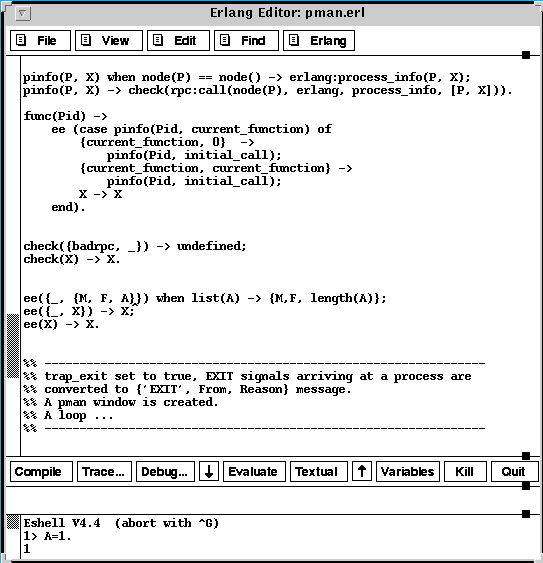
The Main xerl Windowxerl contains two scrollable windows. The top window contains an editor and the lower one an interactive shell. The different areas in the figure above are as follows:
The Menu area: To activate a menu item, click the right mouse button on it. If a menu item with trailing dots is selected, a new window appears.
The Editor area: The editor is similar to a combination of TextEdit and emacs. The TAB key correctly indents lines of Erlang code (similar to the emacs electric mode). This makes it easier to detect syntax errors when entering programs.
The Button area: The buttons are used for the Erlang shell.
The Information area: In this area various help texts are displayed. For example, the meaning of a button is displayed when the cursor is moved over it, or the command history is displayed when the up and down arrow buttons and the Evaluate button are used.
The Erlang Shell area: This is the interface to the Erlang runtime system.
The Current File area: In this area the name of the file in the editor window is shown.
The Grip area: The tiny black square is called a grip. The different areas in xerl can be resized by moving the pointer to the grip, pressing the left mouse and dragging the mouse until the area has the desired size.
All the areas are described in this document. There is one section for each menu of the menu area and one each for the editor, button and shell areas. There are also sections describing the Notice and Confirm windows and the online help facility.
1.1 On-Line Help
There is on-line help for the areas 1-5. If the HELP or F1 button is pressed when the cursor is in any of those areas, a help text, describing that specific part of the window, is shown in a separate window.
1.2 The File Menu
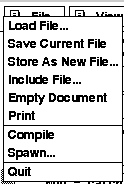
The File MenuThe File menu contains the following items:
Load File: Load a file into the editor. A file name prompter window appears, see section 3.1.
Save Current File: Save the current file in the editor window.
Store As New File: Save the current file with a new filename. A new prompter window appears, see section 3.3.
Include File: Insert a specified file at the cursor position of the current file.
Empty Document: Clear all text in the editor window. If the file has changed, a confirm window appears, see section 11.
Print: Print the document in the editor window. The document is printed on the default printer.
Compile: Compile the file in the editor window. Output from the compiler is displayed in the shell window. The text in the information area indicates if the compilation succeeded.
Spawn: A new editor window is created, see section 3.5.
Quit: Terminate the Erlang editor. If the file has changed, a confirm window appears, see section 11.
1.2.1 The Load File Window
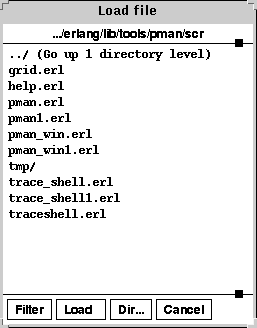
Select the file to be loaded into the editor and click the Load button. Alternatively, double-click the selected file name with the left mouse button. Changing directory is performed in a similar manner.
The Load File WindowThe Load File window contains the following buttons:
Filter: Show all files of the current directory. Click again to show only Erlang files (i.e. the function of the button toggles back and forth between these two operations). The default is to show only Erlang files. Load: Load the selected file or change directory. Dir: Display the Change Directory window. This is useful to avoid repeatedly changing directory by selecting and loading.
Cancel: Cancel the operation and close the window.
1.2.2 The Change Directory Window
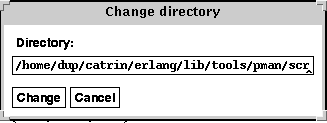
Change directory by entering a directory path.
The Change Directory WindowThe Change Directory window contains the following buttons:
Change: Change directory to the specified path.
Cancel: Cancel the operation and close the window.
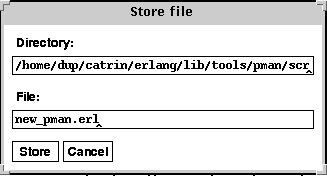
1.2.3 The Store as New File Window
This window is used to store the file in the specified directory with the specified name.
The Store as New File WindowThe Store as New File window contains the following buttons:
Store: Store the specified file.
Cancel: Cancel the operation and close the window.
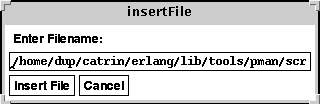
1.2.4 The Include File Window
this window is used to insert the specified file specified at the cursor position in the editor window.
The Include File WindowThe Include File window contains the following buttons:
Insert File: Insert the file at the cursor position.
Cancel: Cancel the operation and close the window.
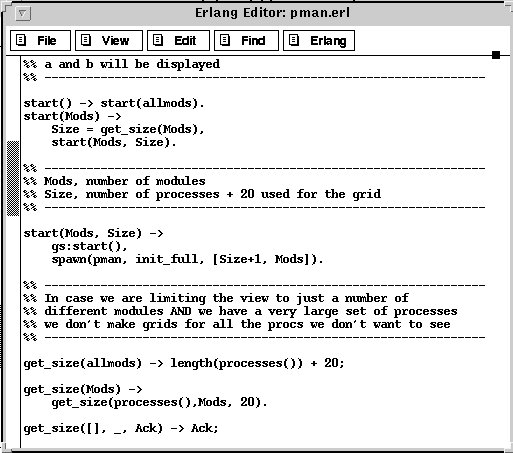
1.2.5 The Spawned Window
The spawn window consists of the menu and the editor areas of xerl. This makes it possible to edit several files at the same time. Note: During compilation, the result is displayed in the shell area of xerl.
A Spawned Editor Window1.3 The View Menu
With the View menu it is possible to move around in the editor. The choices are self-explanatory.
The View Menu1.4 The Edit Menu
After selecting text in the editor, see section 8.3, the following editing functions can be used with the aid of the Edit menu.
The Edit MenuThe window contains the following buttons:
Copy: Copy the selected text into the cut/paste buffer.
Paste: Paste the contents of the cut/paste buffer at the current insertion point in the editor.
Cut: Delete the selected text.
Note: The deleted text is copied into the cut/paste buffer.
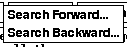
1.5 The Find Menu
Using the Find menu it is possible to search for text in the editor.
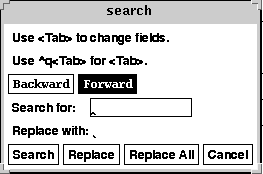
The Find MenuIf Search Forward or Search Backward is pressed, the following window is shown.
The Search Forward/Backward WindowThis window is used for searching for the specified text in the editor window. The located text string can be replaced with an optional replace string.
The Search Forward/Backward window contains the following buttons:
Search: Search for the next occurrence of the string specified in the
Search for: input field.
Replace: Replace the located string by the string specified in the Replace with: input field and locate the next occurrence of the search string.
Replace All: Replace all occurrences of the search string by the specified replacement string.
Cancel: Cancel the operation and close the Search window.
TAB: Toggle between the two input fields in the window.
Backward and Forward: Change the search direction.
1.6 The Erlang Menu
The Erlang menu consists of two functions.
The Erlang MenuAbout xerl: Display general help about the Erlang Editor.
Help Navigator: Start the Help Navigator tool.
1.7 The Editor
Apart from the obvious ways of editing text, the contents of a file can be modified or deleted in a number of ways, both from the Edit menu and by using the keyboard.
Text is always inserted at the insertion point which is shown in the editor as a "^" below the current line. The insertion point can be moved, either by pressing the left mouse button, or by using one of the key sequences described in section 8.2.
Almost all of the menu items, described above, can be reached with the aid of key sequences.
1.7.1 Short-cuts
Use the following key sequences to execute the functions in the menus.
Note: The notation
C-ameans pressing the control key and the letterasimultaneously.M-fmeans pressing the escape key followed by the letterfor pressing the meta key (on SUN workstations it looks like a diamond) and the letterfsimultaneously.
Key Sequence Menu Item Function C-x C-f File Load File... Load a new file into the editor. C-x C-s File Save Current File Save current file. C-x C-w File Store As New File... Store current file with a new name. C-x i File Include File... Insert a specified file at cursor position. C-x C-e File Empty Document Clear all text in editor. C-x C-p File Print current file. C-x C-z File Quit Quit the editor. C-x C-c File Compile Compile current file. C-x C-v File Spawn... Spawn a new editor. M-< View Top Of File Go to beginning of file. M-> View Bottom Of File Go to end of file. M-v View Page Up Go to previous page. C-v View Page Down Go to next page. M-y Edit Paste Paste copied text. C-w Edit Cut Cut selection. C-s Find Search Forward... Open search window. C-r Find Search Backward... Open search window. Menu Item short-cuts 1.7.2 Moving around
The arrow keys can be used to move around in the file. The following key sequences are used for moving around in the file.
Key Sequence Function C-a Move to beginning of line C-b Move backward one character C-e Move to end of line C-f Move forward one character C-l Refresh display. Current line is vertically centred. C-n Go to next line C-p Go to previous line C-r Search backward... C-s Search forward... C-v Scroll up C-z Scroll one line up M-b Move backward one word M-f Move forward one word M-v Scroll down M-z Scroll one line down M-< Go to beginning of file M-> Go to end of file M-] Move forward one paragraph M-[ Move backward one paragraph Moving around key sequences 1.7.3 Copy/Paste
Copy and Paste in the Edit menu can be performed with aid of the mouse buttons in the following ways.
Copy
Text can be copied in two different ways:
- Select the desired text by clicking the left mouse button at the start of the selection and dragging the mouse (with the left mouse button still pressed down) to the end of the selection. The selected text is high-lighted. The selected text is copied into the cut/paste buffer.
- Click the left mouse button at the start position of the desired text. Move the cursor to the end of the desired text and click the right mouse button. The selected text is high-lighted. The selected text is copied into the cut/paste buffer.
Paste
Text is pasted in the following way:
- Put the cursor at the point where you want to insert the text.
- Press the middle mouse button. The text is inserted in front of the cursor.
1.7.4 Key Sequences for Manipulating Text
The following commands are used for manipulating text.
Key Sequence Function C-d Delete next character C-h Delete previous character C-j Insert new line and indent C-k Delete (kill) text to end of line C-m Insert new line C-r Replace text backward... C-s Replace text forward... C-t Transpose characters C-u Repeat next key sequence 4 times C-w Kill selection/area C-x C-x Exchange mark and point C-x h Mark the whole buffer as an area C-y Insert previously killed text, e.g. C-k M-d Delete (kill) next word M-h Delete (kill) previous word M-k Delete (kill) text to end of paragraph M-w Copy area as kill M-y Insert current selection C-Space Set mark. An area is made between a mark and the cursor, e.g. C-w -> kill area. Text manipulation 1.8 The Button Area
The button area of the main window consists of nine buttons and an area called the Message area. The message area displays help text for the buttons and messages from the system.
The Button areaThe window contains the following buttons:
Compile: Compile the current file in the editor. The message area will indicate if the compilation succeeded or not.
Trace: Start a debugger window. This has the same effect as evaluating the function
debugger:simple().
Debug: Start a debugger window. This is the same as
debugger:start().
Down (arrow):Show the command history in forward direction. Every command given to the Erlang shell is stored in the command history. The command at the current position is displayed in the message area.
Evaluate: Evaluate the current command in the command history. The command to be evaluated is displayed in the message area.
Textual: Insert the current command in the command historyinto the Erlang shell. The command can be edited in the Erlang shell.
Up (arrow): Show the command historystep by step in the backward direction. The command at the current position is displayed in the message area.
Variables: Display all bound variables known to the Erlang shell.
Kill: Kill the currently running Erlang shell and start a new one. This is a useful function if you want to break the evaluation of a program currently running a non-terminating loop.
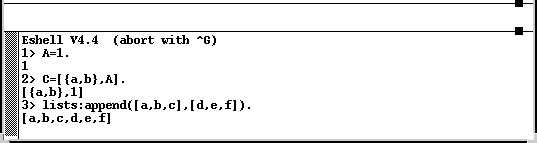
Quit: Close the Erlang editor. If a file in an editor window has been modified but not saved a confirm window will appear, see section 11.
1.9 The Shell Area
Editing in the shell area is performed in the same way as in the command-line shell. The key sequences available in the Erlang shell are described in this section.
All commands given to the shell are stored in a command history. To browse the command history, use the buttons described in the previous section.
The Erlang shell is a simplified version of the command line shell started without the Erlang editor.
The Erlang ShellThe key sequences used in the Editor for editing text are also applicable to the shell.
1.9.1 Short-cuts
The buttons in the Button Area can be reached with the following short-cuts.
Key Sequence Button Function C-x C-c Compile Compile current file in the main editor. C-x C-t Trace... Start a simple debugger. C-x C-d Debug... Start a debugger. C-x C-n Down (arrow) Show next command of history. C-x C-e Evaluate Evaluate current command of history. C-x C-i Textual Insert current command of history into shell. C-x C-p Up (arrow) Show previous command of history C-x C-v Variables Display all bound variables. C-x C-k Kill Kill shell and start new Erlang shell. C-x C-q Quit Quit Erlang editor. Button short-cuts 1.10 The Confirm Window
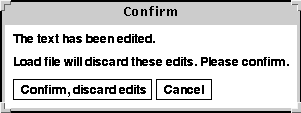
The Confirm Window appears when changes to an unsaved file may be lost. You are asked to confirm or cancel the operation.
The Confirm window can appear when:
- Loading a new file into an editor
- Clearing all text in an editor (empty document)
- Quitting an editor
- Quitting the main window of the Erlang editor
The text in the Confirm window varies according to the operation being performed.
The Confirm WindowThe Confirm window contains the following buttons:
Confirm, discard edits: Confirm the operation. All changes made to the unsaved file disappear.
Cancel: Cancel the operation. It is then possible to save the file.
1.11 The Notice Window
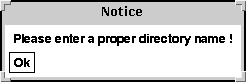
The Notice window is a pop-up window, in which the user will be informed about improper usage. For example, if a write protected directory has been used for storing a file, the following Notice window will appear.
The Notice Windowcaption>Ok: The Notice Window disappears.
1.12 The Icon
The Icon is used as a symbol indicating that an editor window has been iconified. The text in the bottom of the icon indicates the name of the file loaded into the editor.
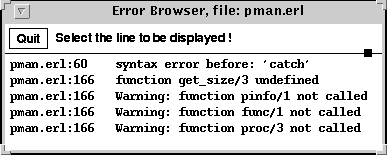
The Icon1.13 The Error Browser Window
Whenever an error occurs during compilation the following window is shown. It is then possible to highlight the line in the source code causing the error by selecting a line in the Error Browser window.
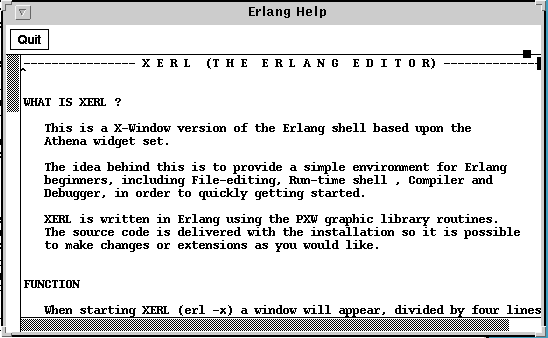
The Error Browser Window1.14 The Help Window
The Help Window displays help text. The help in the Erlang editor is case sensitive and depends upon where the cursor was placed when you pressed the Help or F1 button.
The Help WindowQuit: Closes the Help window